> ## Documentation Index
> Fetch the complete documentation index at: https://docs.callcloser.ai/llms.txt
> Use this file to discover all available pages before exploring further.
# Post-Call SMS Automation
> Learn how to automatically send SMS messages to customers after AI phone calls end
This tutorial shows how to set up an automation that automatically sends SMS messages to customers after AI phone calls end, with conditional logic based on call outcomes.
## What You'll Learn
* Setting up post-call webhook automation triggers
* Configuring conditional logic based on call success
* Mapping call data to SMS content
* Testing post-call automations with live calls
* Best practices for SMS follow-up messaging
## Prerequisites
* Configured AI assistant with post-call variables
* SMS-enabled phone number in your platform
* Basic understanding of automation flows
* Access to call testing functionality
## Step 1: Create Post-Call Automation Flow
We'll start by creating an automation that triggers when a phone call ends.
1. **Navigate to Automation Platform**
2. **Create a new flow** from scratch
3. **Search for your calling platform** in the trigger section
4. **Select "Phone Call Ended"** trigger
* This trigger activates when any call to your selected assistant completes
## Step 2: Configure Assistant and Webhook
1. **Select the assistant** you want to automate
* Each assistant can only have one "phone call ended" automation
* All calls to this assistant will go through this automation
2. **Click "Test Trigger"** to generate the webhook
* This creates a webhook URL in the background
* The webhook is automatically saved to your assistant settings
## Step 3: Verify Webhook Configuration
1. **Open a new tab** and navigate to your assistant
2. **Go to the third tab** "Post-call Actions"
3. **Verify the webhook URL** was automatically added
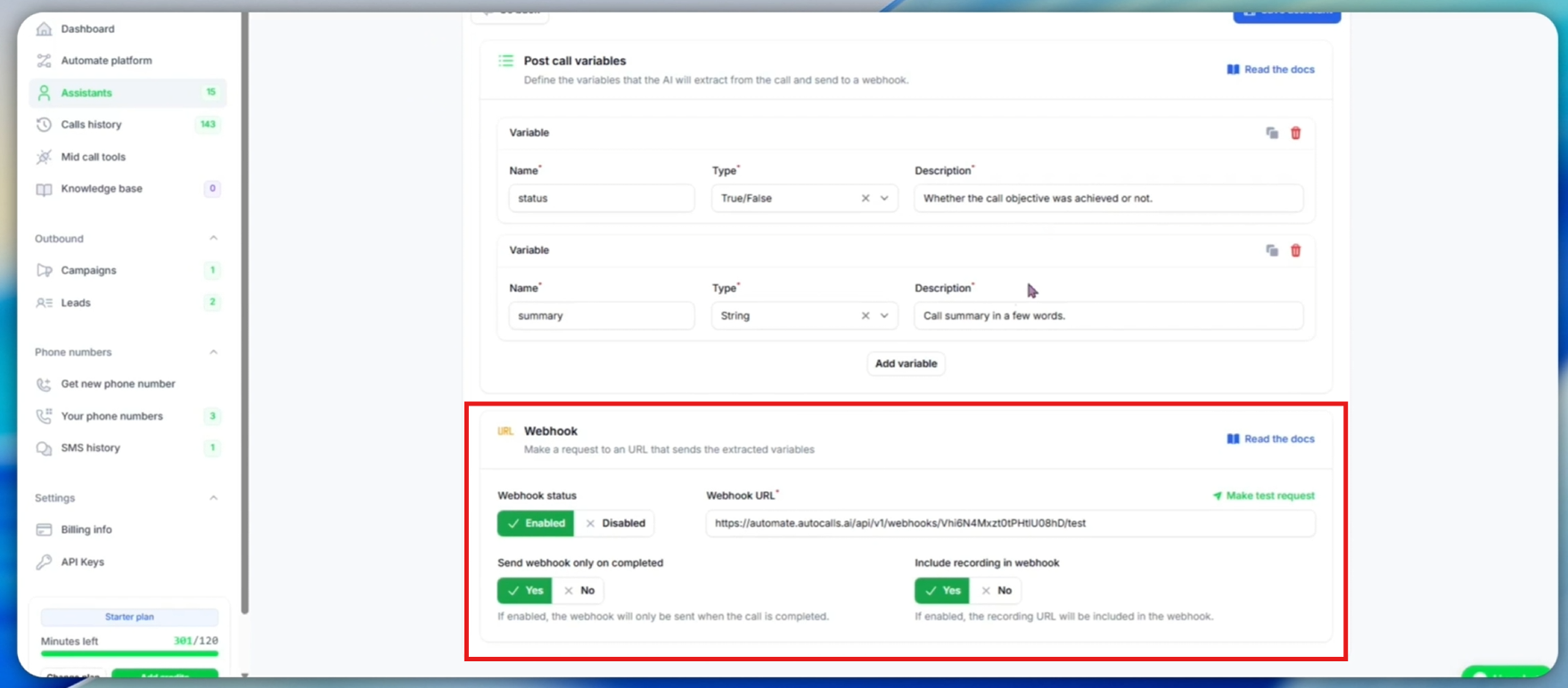
4. **Review webhook settings:**
* **Enabled**: Webhook will trigger after calls
* **Completed calls only**: Only successful calls trigger automation
* **All calls**: Change to "No" if you want all calls (including failed) to trigger
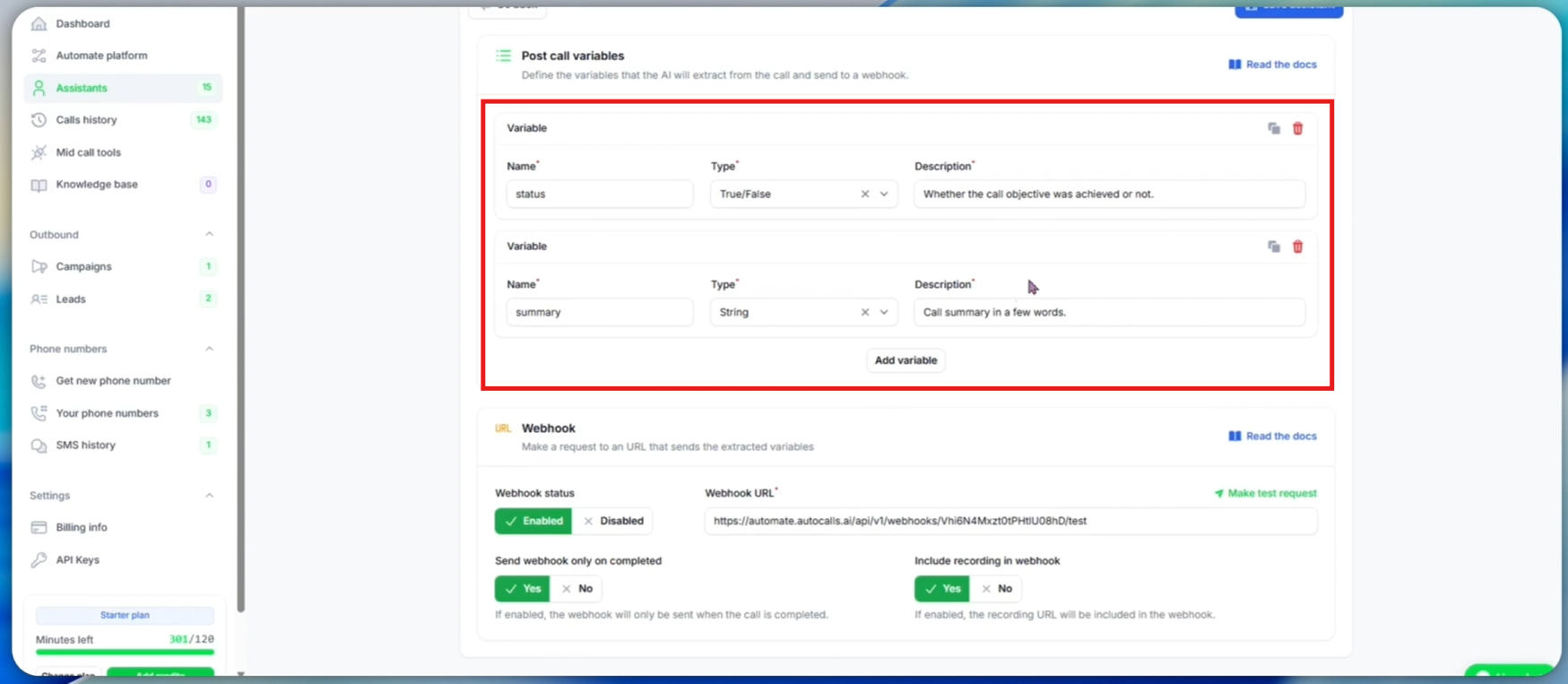
5. **Review post-call variables:**
* **status**: Boolean (true/false) indicating if call objective was achieved
* **summary**: Text summary of the call conversation
* These variables are extracted by AI after each call
## Step 4: Generate Test Call Data
To configure our automation properly, we need actual call data to work with. We'll make a test call to generate the post-call variables.
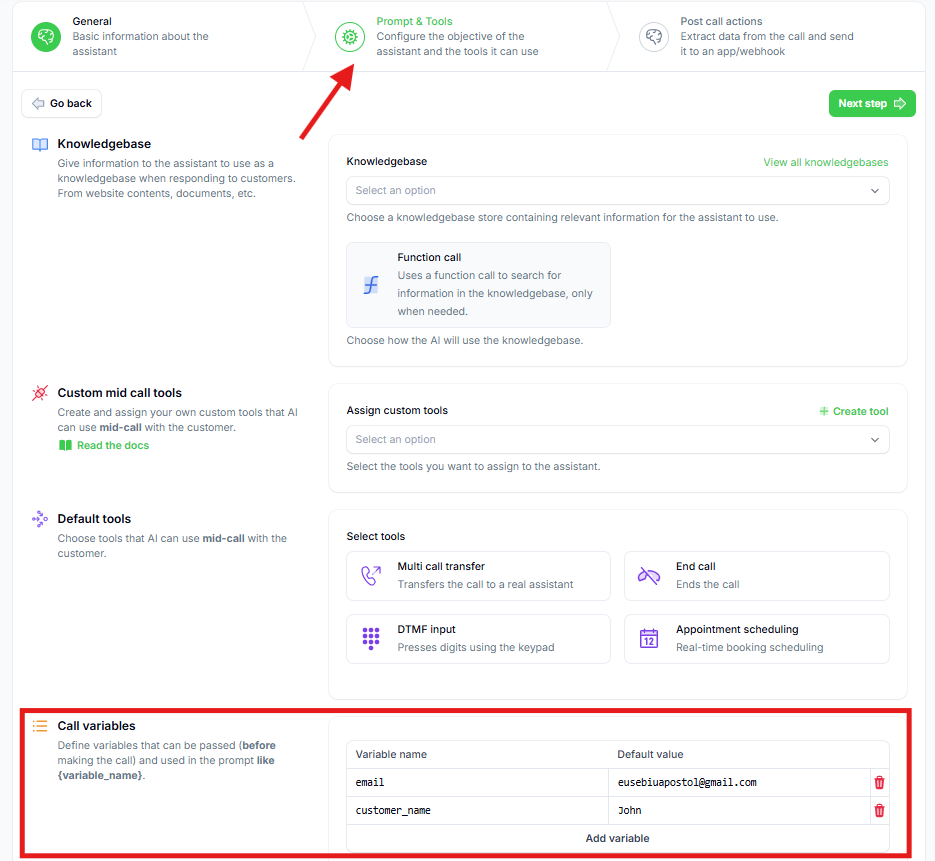
1. **Set real values** in your assistant's call variables:
* **Set your name and email** for realistic test data
* These will be the default values when testing from the assistant
2. **Make a test call to generate webhook data:**
* Click **"Speak to Assistant"** → **"Phone Call"**
* **Answer when your assistant calls you**
* **Respond positively** to ensure the `status` variable becomes `true`
* **Complete the call objective** during the conversation
* **End the call naturally**
In a real situation, the assistant will take data assigned to the lead. For testing, it uses the default values you just set.
3. **Verify call results and variable extraction:**
* **Navigate to your calls list** and find the recent call
* **Click on the call** to view details
* **Confirm the `status` variable is `true`** (call objective achieved)
* **Review the extracted `summary`** - this contains AI-generated call summary
* These variables are extracted after each call based on:
* Call transcript
* Variable descriptions
* Variable types (Boolean for status)
* System prompt context
The variables after a call are being extracted. You can refresh the page after about a minute and then you will see the extracted variables.
## Step 5: Configure Automation with Call Data
1. **Return to your automation tab**
2. **Verify you received call data** from the test trigger
* You should see the webhook data because you clicked "Test Trigger" and then made a call
* The automation received the request after the call ended and variables were extracted
3. **Alternative method - resend webhook data from existing calls:**
* If you need to test with different call data, you can reuse any existing call
* **Click "Test Trigger"** again in your automation
* **Go to any completed call** in your platform
* **Click "Resend Webhook"** to push that call's data to your automation
* **Return to automation tab** to see the updated data
### Adding New Post-Call Variables
If you need to add a new post-call variable after creating the automation, follow this process to update your automation with the new variable data.
1. **Define the new variable in your assistant:**
* Go to assistant settings → "Post-call Actions" tab
* Add your new post-call variable (name, type, description)
* **Save the assistant**
2. **Update automation with new variable data:**
* **Return to your automation**
* **Click "Test Trigger"** to prepare for new webhook data
3. **Re-evaluate an existing call:**
* **Go to any completed call** for this assistant
* **Click "Re-evaluate"** to extract the new variable from that call
* **Wait for processing** to complete
4. **Send updated data to automation:**
* **Click "Resend Webhook"** on the same call
* **Return to automation tab**
* **Verify the new variable** is now available in your automation data
This resend feature is useful for testing different scenarios without making new calls every time.
## Step 6: Add Conditional Logic for Goal-Based SMS
We want to send SMS only when the call objective is achieved, so we need a decision branch in our automation.
1. **Click the "+" sign** to add a new step
2. **Search for "Branch"** in the control flow options
3. **Select the Branch** component
4. **Configure the branch condition:**
* **A sidebar will appear** for setting up the condition
* **Search for the `status` variable** from your call data
* **Select the `status` variable**
* **Choose "Boolean is true"** as the condition type
* This creates **two paths**: **True (left)** and **False (right)**
The `status` variable is Boolean (true/false). After each call, this variable will be extracted and will be `true` if the call objective was achieved, otherwise `false`. The branch will execute the "True" path when the goal was achieved and the "False" path when it wasn't.
**Understanding the Logic:**
* **True path (left)**: Actions for successful calls (objective achieved)
* **False path (right)**: Actions for unsuccessful calls (objective not achieved)
## Step 7: Configure SMS Action for Successful Calls
Now we'll add the SMS action that triggers when the call objective is achieved.
1. **On the "True" branch** (successful calls), **click the "+" sign**
2. **Search for your calling platform**
3. **Select "Send SMS to Customer"**
4. **Select an SMS-enabled phone number** from your platform:
* **Choose an existing number** that you have in your platform
* This number will be the **sender of your SMS messages**
* Make sure the number has SMS capabilities enabled
## Step 8: Map SMS Content and Recipient
Now we'll configure who receives the SMS and what message they get.
1. **Configure the SMS recipient:**
* **Click on "Customer Phone" input field**
* **A sidebar will open** showing available data from the call
* **Search for the variable that holds the phone number**
* **Select the phone number** from your call data
* **Click "Insert"** to map the field
2. **Configure the SMS message content:**
* **Move to the text message field**
* **Use the `summary` variable** for personalized content
* The `summary` is the post-call variable that contains AI-generated call summary
* **You can write custom text** + dynamic summary
* **Example**: "Thank you for your time! Here's a summary of our call: {summary}"
The `summary` variable is filled automatically after each call based on the conversation discussion and will be unique for each customer interaction.
3. **Test the SMS action:**
* **Click "Test Step"** to send a test SMS using your call data
* **Verify successful delivery** in the test results
* **Check your phone** for the actual SMS message
* **Confirm the message content** includes the call summary
## Step 9: US Phone Numbers - Twilio Integration
**Important for US phone numbers**: If your SMS messages need to be sent to US phone numbers, you will need to use Twilio instead of our AI calling platform's SMS feature. This requires A2P verification for compliance with US regulations.
### Setting Up Twilio for US SMS
If you need to send SMS to US numbers, follow these steps:
1. **Purchase a phone number from Twilio** with SMS capabilities
2. **Complete A2P verification** process in your Twilio account
3. **Replace the SMS action** in your automation:
* **Search for "Twilio"** in the action search
* **Select "Send SMS"** from Twilio options
* **Create new connection** when prompted
* **Complete Account SID and Auth Token** from your Twilio dashboard
* **Save the connection**
4. **Configure Twilio SMS:**
* **Select your Twilio phone number**
* **Map customer phone number** (same process as above)
* **Configure message body** (same process as with our platform)
* **Test the step** to verify delivery
US SMS regulations require A2P verification for business messaging. Using unverified numbers may result in message blocking or account suspension.
## Step 10: Publish and Activate Automation
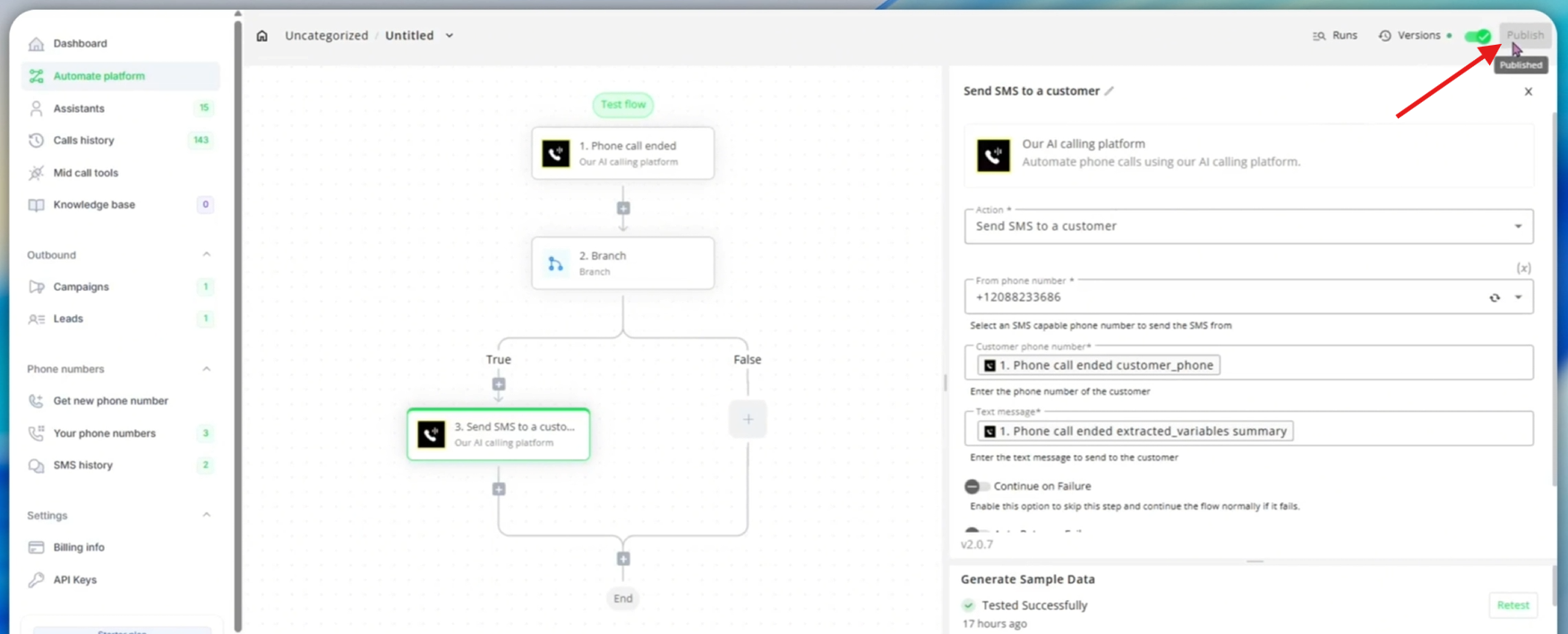
1. **Click "Publish"** to activate your automation
2. **Your post-call SMS automation is now live and ready**
**What happens now:**
* **After each call** with the selected assistant
* **If the objective was achieved** (`status` = true)
* **The customer will automatically receive an SMS** with the call summary
3. **Monitor automation performance:**
* **Click "Runs"** to see execution history
* **Verify SMS delivery** for successful calls
* **Monitor any failed executions**
* **Track which calls triggered SMS** vs which didn't
From now on, after each call with the objective achieved, the customer will receive an SMS automatically. This improves follow-up consistency and customer engagement.
### SMS Delivery Tracking
Monitor your SMS automation effectiveness:
* **Delivery rates**: Track successful SMS delivery
* **Response rates**: Monitor customer engagement
* **Opt-out handling**: Respect customer preferences
## Best Practices
### Message Content
* **Keep messages concise** and valuable
* **Personalize with call data** when relevant
* **Include clear next steps** or contact information
### Timing Considerations
* **Send immediately** after successful calls for best engagement
* **Consider time zones** for your customer base
* **Avoid late-night messaging** unless appropriate for your business
## Troubleshooting
### Common Issues
**SMS not sending:**
* Verify phone number has SMS capabilities
* Check customer phone number format (+1234567890)
* Confirm SMS action is on the correct branch
**Automation not triggering:**
* Ensure webhook is enabled in assistant settings
* Verify automation is published and active
* Check that calls are completing successfully
**Wrong message content:**
* Verify variable mapping in SMS content
* Check that post-call variables are being extracted
* Test with various call scenarios
## Next Steps
Once your basic SMS automation is working:
* **Add email automation** for additional follow-up
* **Create different messages** for different call outcomes
* **Integrate with CRM systems** to log communication
* **Set up advanced analytics** to track engagement
* **A/B test different message templates** for optimal results
Your customers will now receive personalized SMS messages after successful calls, improving engagement and follow-up consistency!
 4. **Review webhook settings:**
* **Enabled**: Webhook will trigger after calls
* **Completed calls only**: Only successful calls trigger automation
* **All calls**: Change to "No" if you want all calls (including failed) to trigger
4. **Review webhook settings:**
* **Enabled**: Webhook will trigger after calls
* **Completed calls only**: Only successful calls trigger automation
* **All calls**: Change to "No" if you want all calls (including failed) to trigger
 5. **Review post-call variables:**
* **status**: Boolean (true/false) indicating if call objective was achieved
* **summary**: Text summary of the call conversation
* These variables are extracted by AI after each call
## Step 4: Generate Test Call Data
To configure our automation properly, we need actual call data to work with. We'll make a test call to generate the post-call variables.
5. **Review post-call variables:**
* **status**: Boolean (true/false) indicating if call objective was achieved
* **summary**: Text summary of the call conversation
* These variables are extracted by AI after each call
## Step 4: Generate Test Call Data
To configure our automation properly, we need actual call data to work with. We'll make a test call to generate the post-call variables.
 1. **Set real values** in your assistant's call variables:
* **Set your name and email** for realistic test data
* These will be the default values when testing from the assistant
2. **Make a test call to generate webhook data:**
* Click **"Speak to Assistant"** → **"Phone Call"**
* **Answer when your assistant calls you**
* **Respond positively** to ensure the `status` variable becomes `true`
* **Complete the call objective** during the conversation
* **End the call naturally**
1. **Set real values** in your assistant's call variables:
* **Set your name and email** for realistic test data
* These will be the default values when testing from the assistant
2. **Make a test call to generate webhook data:**
* Click **"Speak to Assistant"** → **"Phone Call"**
* **Answer when your assistant calls you**
* **Respond positively** to ensure the `status` variable becomes `true`
* **Complete the call objective** during the conversation
* **End the call naturally**
 1. **Click "Publish"** to activate your automation
2. **Your post-call SMS automation is now live and ready**
**What happens now:**
* **After each call** with the selected assistant
* **If the objective was achieved** (`status` = true)
* **The customer will automatically receive an SMS** with the call summary
3. **Monitor automation performance:**
* **Click "Runs"** to see execution history
* **Verify SMS delivery** for successful calls
* **Monitor any failed executions**
* **Track which calls triggered SMS** vs which didn't
1. **Click "Publish"** to activate your automation
2. **Your post-call SMS automation is now live and ready**
**What happens now:**
* **After each call** with the selected assistant
* **If the objective was achieved** (`status` = true)
* **The customer will automatically receive an SMS** with the call summary
3. **Monitor automation performance:**
* **Click "Runs"** to see execution history
* **Verify SMS delivery** for successful calls
* **Monitor any failed executions**
* **Track which calls triggered SMS** vs which didn't